This documentation covers the process for upgrading within the 4.x series of releases or from 3.x to 4.x. This means updating
from—for example—4.0.0 to 4.1.0 or from 3.10.0 to 4.1.0.
Before You Begin
Please back up your files before proceeding so that you can roll back in an event of a broken update. It's as simple as copying the folder that contains Convoy, and it will contain your database entries (unless you're not using Convoy's pre-configured deployment), configuration, and Convoy itself.
Though, don't immediately start backing up right now as your panel is still running. Read the rest of this documentation, and we'll tell you when it's safe.
Manual Update
Enter Maintenance Mode
Whenever you are performing an update you should be sure to place your Panel into maintenance mode. This will prevent users from encountering unexpected errors and ensure everything can be updated before users encounter potentially new features.
Use the
secretoption to specify a maintenance mode bypass token, so you can access the queue system dashboard after setting your server into maintenance mode.Terminaldocker compose up -d workspace docker compose exec workspace php artisan down --secret="<custom value>"
After placing Convoy in maintenance mode, you may navigate to the URL matching this token and Convoy will issue a maintenance mode bypass cookie to your browser:
https://example.com/<custom value>
When accessing this hidden route, you will then be redirected to the dashboard. Once the cookie has been issued to your browser, you will be able to browse Convoy normally as if it was not in maintenance mode.
Check For Running Jobs
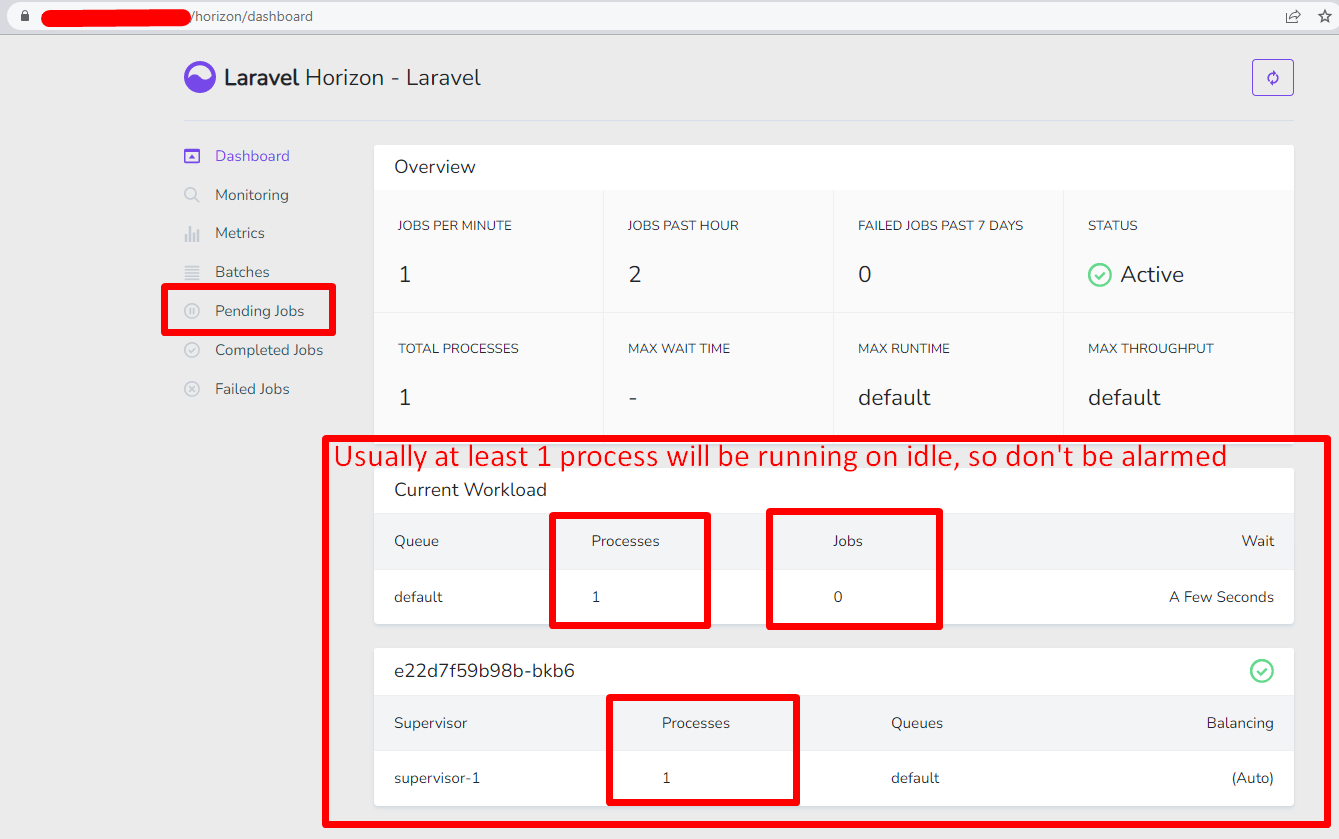
After you have set the Panel to maintenance mode, check Convoy's workers to see whether they are still processing jobs ( e.g. server installations, backups, restorations). Goto
<panel domain>/horizonafter signing in to Convoy with an account that has administrator privileges. Then, check whether there are still any jobs pending or processing.If there are pending jobs or jobs in progress, patiently wait for them to complete. If you don't wait for the jobs to complete, you risk putting servers in an unknown state and this is not the only potential consequence.
Shutting Down Containers
Once Convoy is idle, you can now safely turn off the Docker containers.
Terminaldocker compose down
After turning off the containers, you may now backup Convoy.
Download the Update
The first step in the update process is to download the new panel files from GitHub. The command below will download the release archive for the most recent version of Convoy, save it in the current directory and will automatically unpack the archive into your current folder.
Terminalcurl -L https://github.com/convoypanel/panel/releases/latest/download/panel.tar.gz | tar -xzv
Once all the files are downloaded we need to set the correct permissions on the cache and storage directories to avoid any webserver related errors.
Terminalchmod -R o+w storage/* bootstrap/cacheRebuilding Containers
Now that you have the update, proceed to rebuild the Docker containers for Convoy
Terminaldocker compose up -d --build
Update Dependencies
Terminaldocker compose exec workspace composer install --no-dev --optimize-autoloader
Database Updates
You'll also need to update your database schema for the newest version of Convoy. Running the command below will update the schema of your database.
Terminaldocker compose exec workspace php artisan migrate --force
Update Caches
You'll also want to update your caches so that the new update takes effect.
Terminaldocker compose exec workspace php artisan optimizeRestarting One Last Time
Now that everything has been updated, you can start up the rest of the containers so that the Panel can resume accepting connections.
Terminaldocker compose restart docker compose exec workspace php artisan up